Upload data
Upload a 3D Gaussian Splatting model or point cloud to create an interactive Blurry scene. Blurry detects the data type, processes it for the web, and gives you the tools to annotate and share it.
How to create a Scene
Create a scene from the scenes dashboard. Click , give your scene a name, and drag your model into the upload dialog.
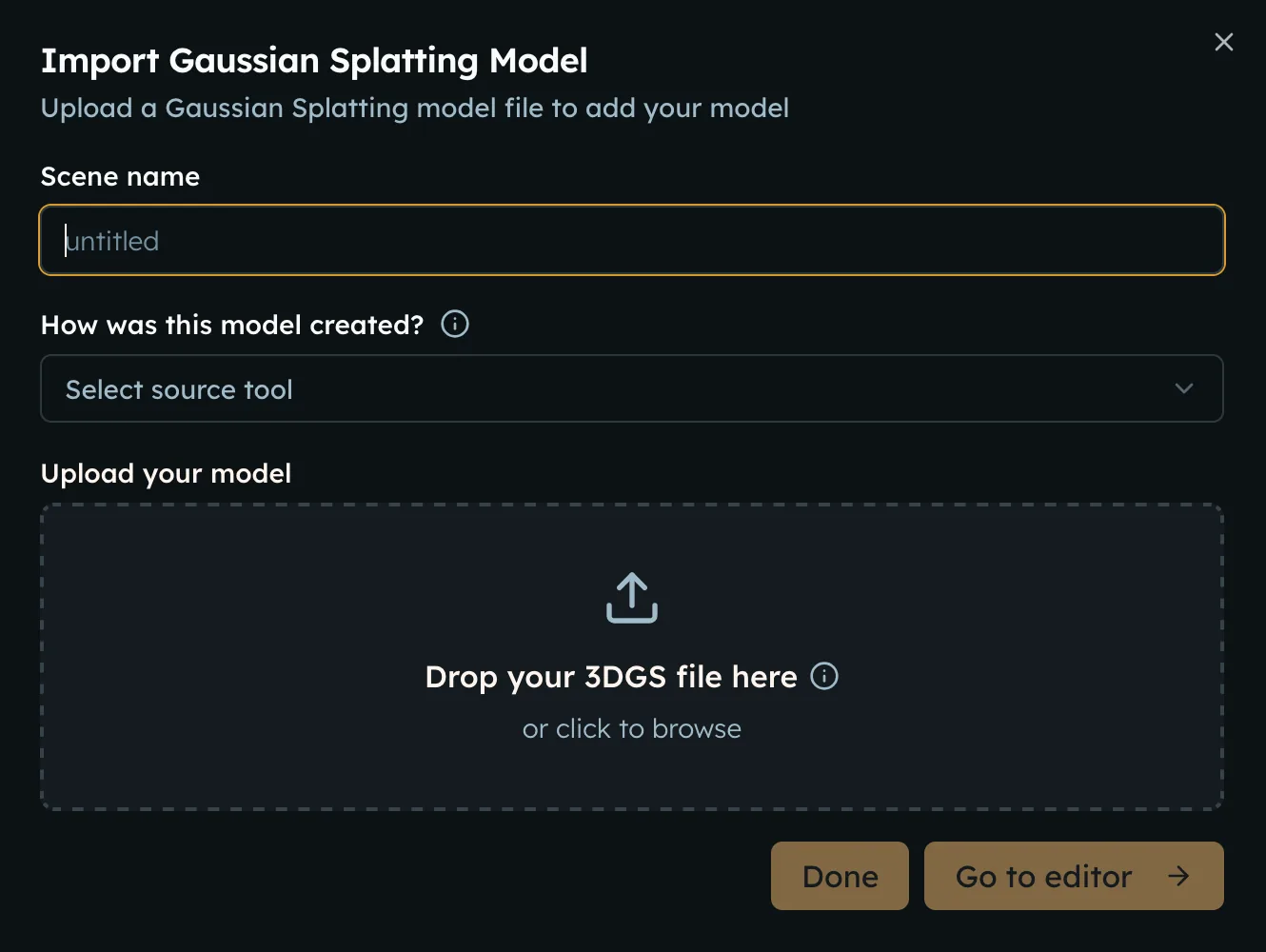
3D Gaussian Splatting
Upload raw PLY data or an LCC2 package to create a 3D Gaussian Splatting scene.
Supported 3DGS formats
Blurry accepts the following Gaussian Splatting formats:
| Format | File extension | Description |
|---|---|---|
| Raw PLY | .ply | Raw uncompressed 3DGS data produced by Gaussian Splatting tools |
| LCC2 (XGRIDS) | .zip | A package with one .lcc2 file, sibling files in data/3dgs, and optional files in data/mesh |
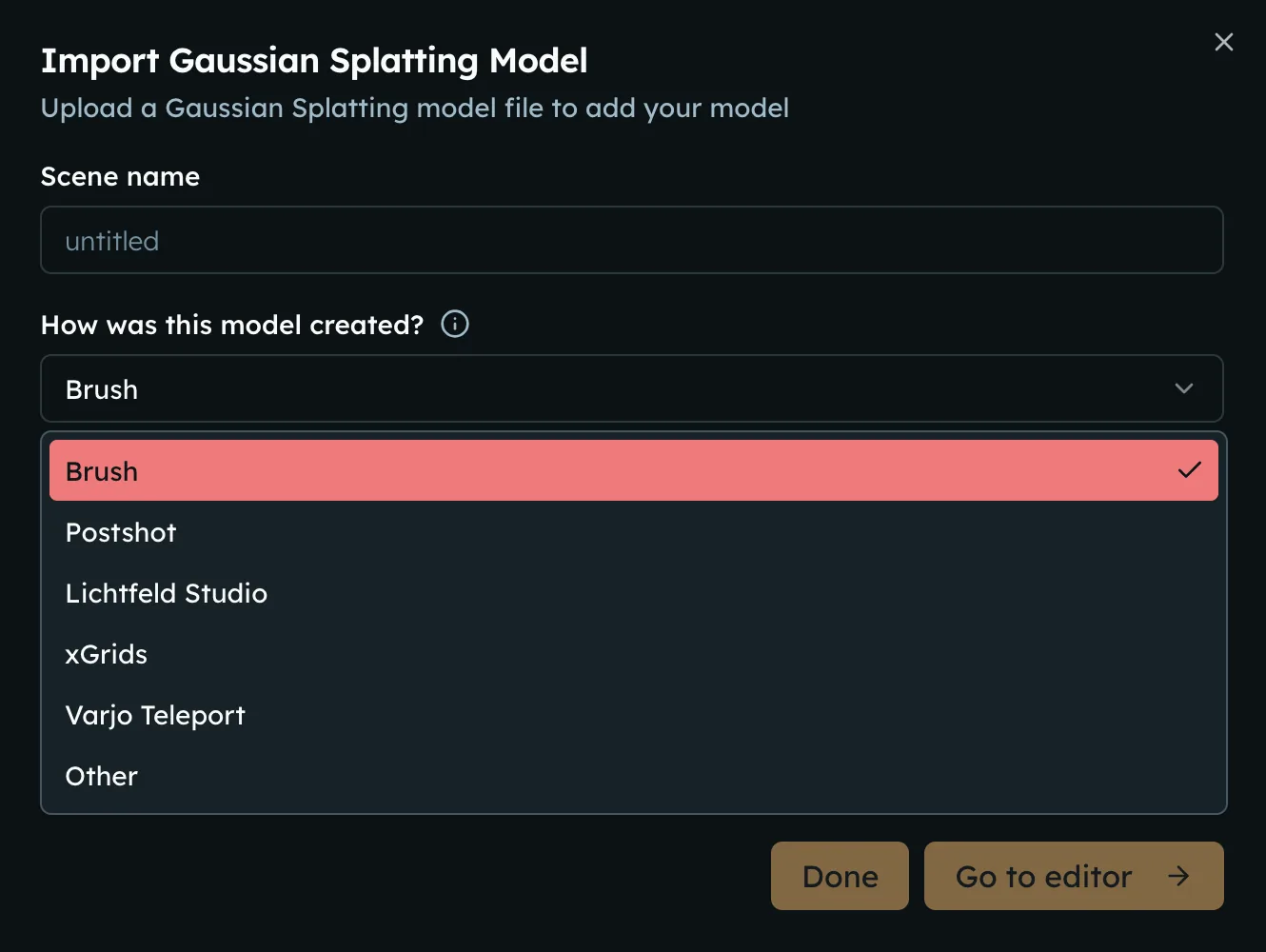
Select the source tool
Selecting a source tool is optional. It helps Blurry align your model when tools use different axis conventions.
Blurry currently recognises these tools:
Optional: Upload multiple levels of detail
For large Gaussian Splatting scenes, you can choose to upload multiple .ply files as levels of detail. Blurry integrates all uploaded files into one Scene and displays lower-detail versions first and progressively loads higher-detail versions.
Uploading separate variants is optional because Blurry automatically generates lower-detail variants. Upload your own variants when you need more control over their quality.
Open a Gaussian Splatting scene during upload
You can enter the editor as soon as Blurry has a renderable version of your Gaussian Splatting model.
For raw .ply uploads under 4 million splats, this can happen before the upload finishes. For larger models and LCC2 uploads, wait until Blurry generates a renderable lower-detail variant.
[//]: # (Explore a 3DGS scene example to see the result.)
Point clouds
A point cloud represents a space or object as a collection of points in 3D. Upload one point-cloud file to create a scene without converting it first.
Blurry cannot combine multiple point-cloud files or mix point clouds with Gaussian Splats in one scene.
Supported point-cloud formats
Upload one self-contained file in a supported point-cloud format. Files that require companion files or external data sources aren't supported.
| File extensions | Format |
|---|---|
.las | LAS point-cloud data |
.laz | Compressed LAS point-cloud data |
.e57 | E57 scan data |
.ply | PLY point-cloud data |
.pts | PTS point-cloud data |
.ptx | PTX scan data |
.pcd | Point Cloud Data (PCD) |
.bpf | Binary Point Format (BPF), versions 1–3 |
.fbi | TerraScan FastBinary, version 1 |
.drc | Draco-compressed geometry |
.feather | GeoArrow point-cloud data |
.parquet | GeoParquet point-cloud data |
.nitf, .ntf, .nsf | NITF 2.1 containing embedded LAS or LAZ data |
.slpk | Esri Scene Layer Package containing a point-cloud layer |
Cloud Optimized Point Cloud (COPC) files use .copc.laz and are accepted as .laz uploads. BPF files must be uncompressed or use Zlib compression.
Note: the .ply extension can contain point-cloud or Gaussian Splatting data. Blurry inspects the file and selects the matching processing pipeline.
Process and stream point clouds
Blurry automatically prepares your point cloud for web streaming with level of detail (LoD) support. LoD displays fewer points for an overview and loads more detail as you explore. Explore a point cloud scene example to see the result.
You do not need to generate or upload separate lower-detail files. Wait for processing to finish before opening the point cloud in the editor; you will receive a notification when it's ready and can track progress from the dashboard.
Annotate and share scenes
Draw attention to details by adding annotations and use waypoints to save camera views. Use the Object Manager to find or create them.
When your scene is ready, turn on sharing or embed it on your website.
File sizes and background uploads
Blurry does not set an upper file-size limit for model uploads, however your browser and connection must remain available until the upload finishes.
Click after the upload starts. Blurry creates the scene and continues the upload in the background, so you can close the dialog and follow its progress from the dashboard.